
Docks, hubs and cables
iVANKY
Docks and hubs that turn one laptop port into a full desk setup.
Best for Laptop users with two monitors.
Screen check
Full-screen solid colours, a gray ramp for banding, and tap-to-mark so you leave with the exact spot.
Runs only in this browser. Nothing is recorded, stored or uploaded.
In full screen: arrow keys or the bar at the bottom change colour. Tap a bad spot to mark it. Esc leaves.
Some links here are affiliate links and may earn us a commission. It never changes a score.
Docks, hubs and cables
Docks and hubs that turn one laptop port into a full desk setup.
Best for Laptop users with two monitors.
 9.5
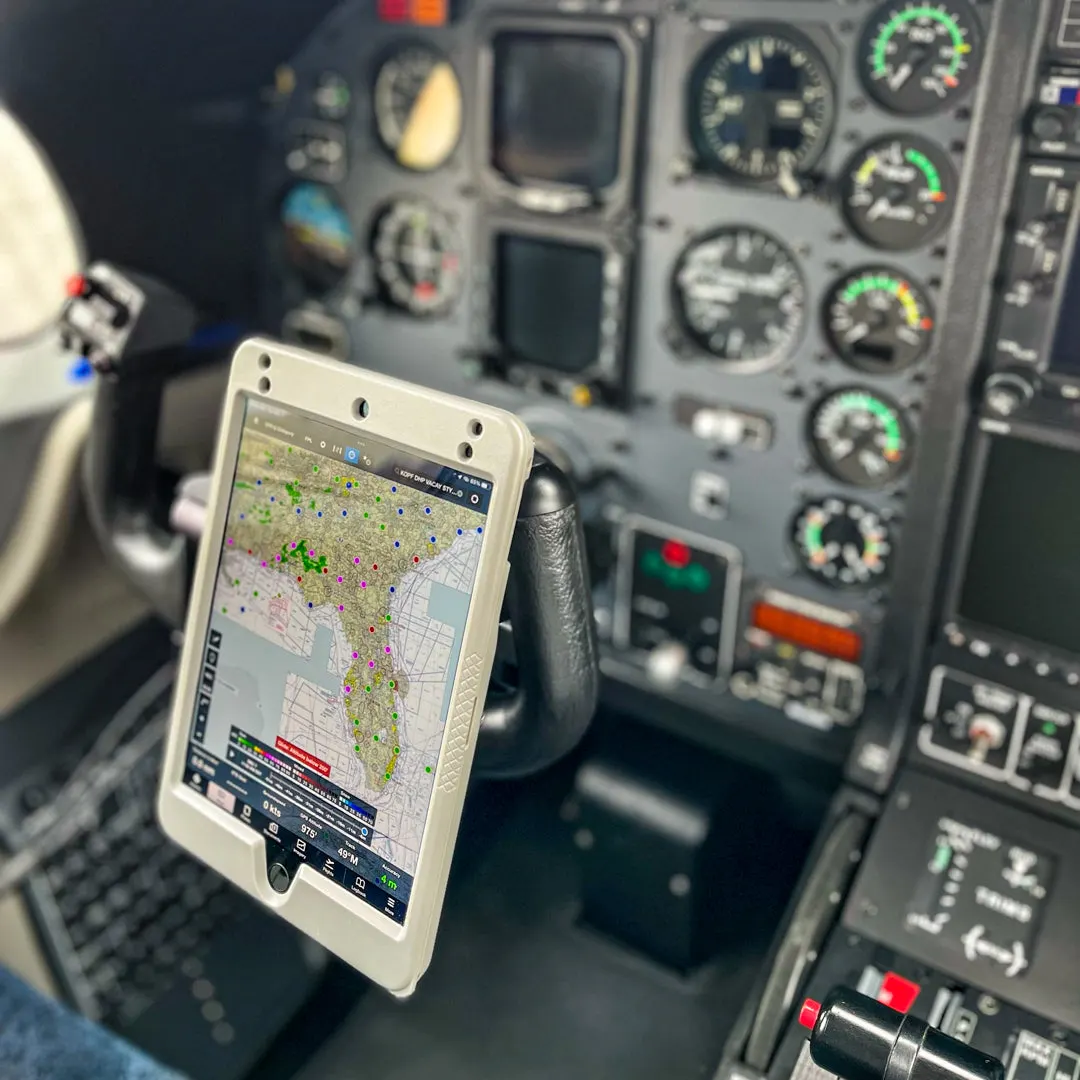
Aviation & HardwarePIVOT Case Review
No. Colours change only when you tap, press a key, or choose auto, which holds each colour for 4 seconds. Rapid flashing can trigger seizures, so we never use it.
A dead pixel stays dark on every colour. A stuck pixel stays lit, either white or one of red, green or blue. Stuck pixels sometimes recover; dead ones rarely do.
Each mark lists its position in screen pixels and in physical pixels, plus the colour that showed it. Most makers publish a pixel policy that says how many defects they replace for, so compare your marks with it before the return window closes.
Browsers draw at the refresh rate the system gives them. Battery saver, a second monitor at a lower rate, or a cable that cannot carry the full rate will all pull it down.
Photo: Lisa Fotios / Pexels